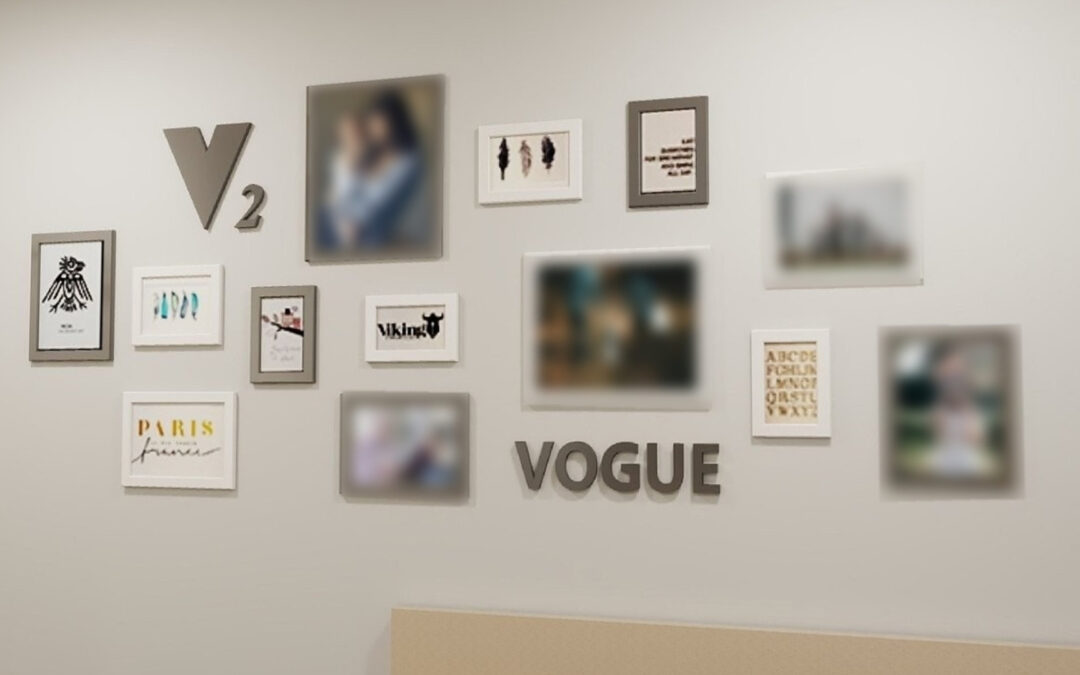
This feature serves to hide sensitive elements (such as portraits or license plates) in the Virtual Tour panoramas.
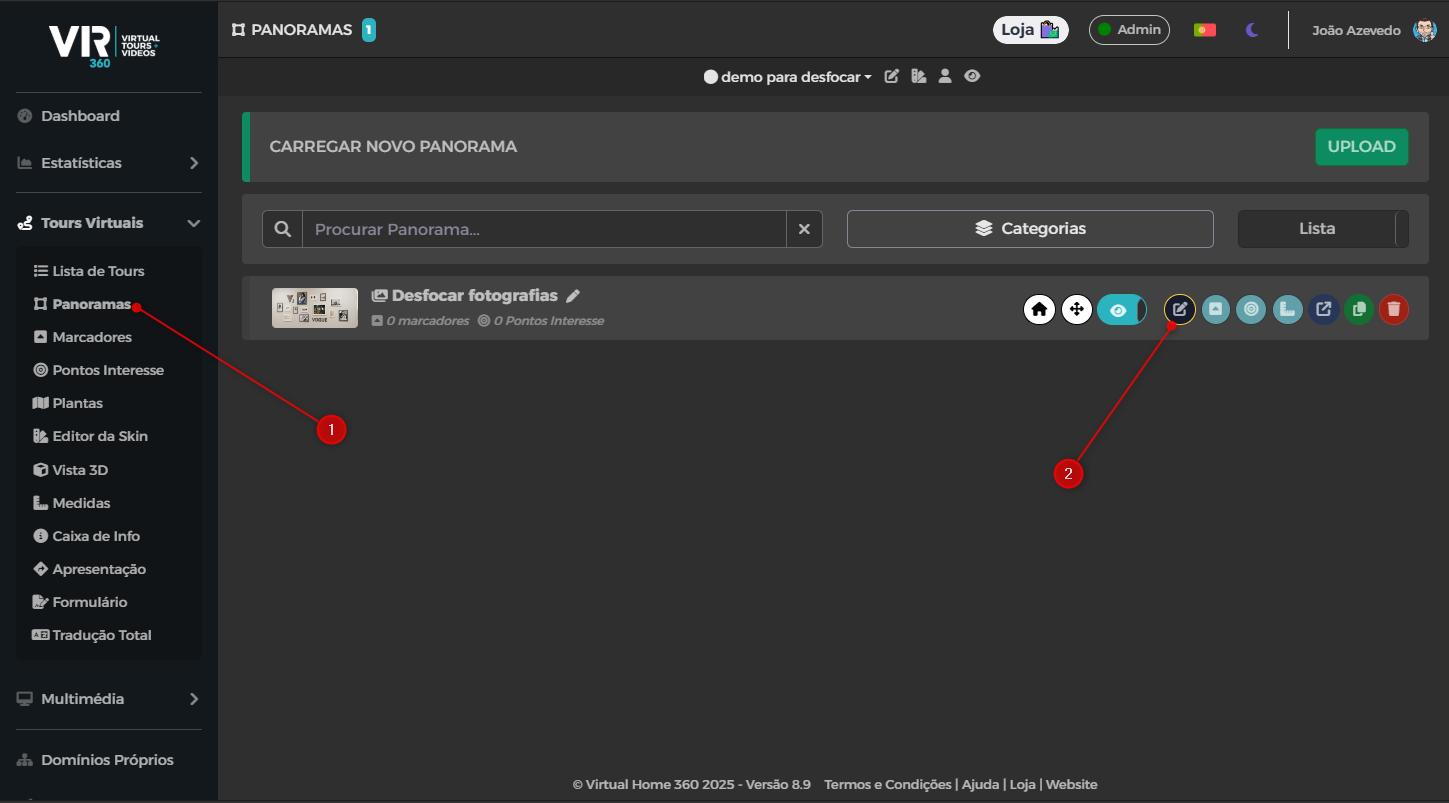
To find the functionality you need to enter the panorama editing menu that we want to blur elements.
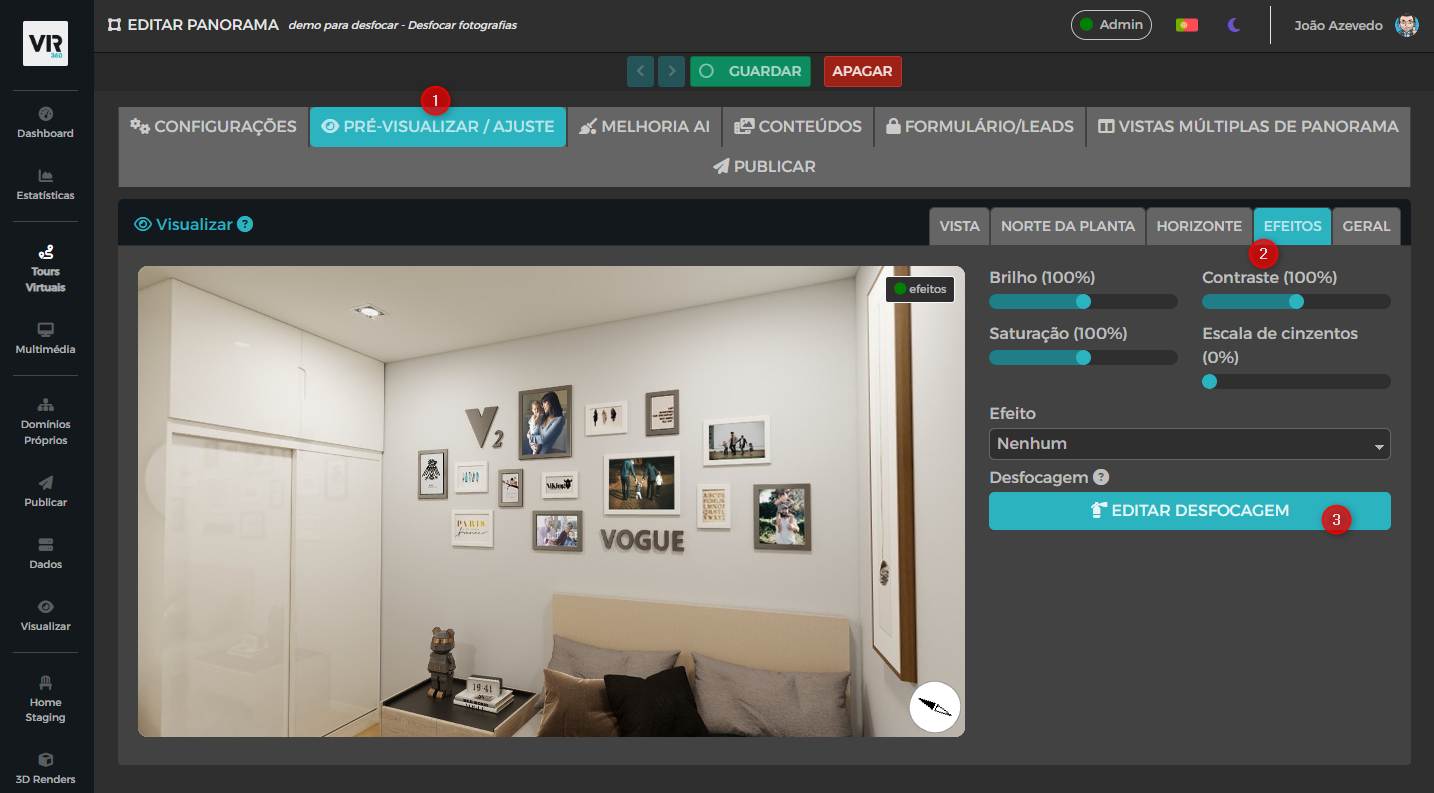
After clicking on the second top menu Preview / Adjust, click now on the fourth Effects tab to find the option Edit Blur.
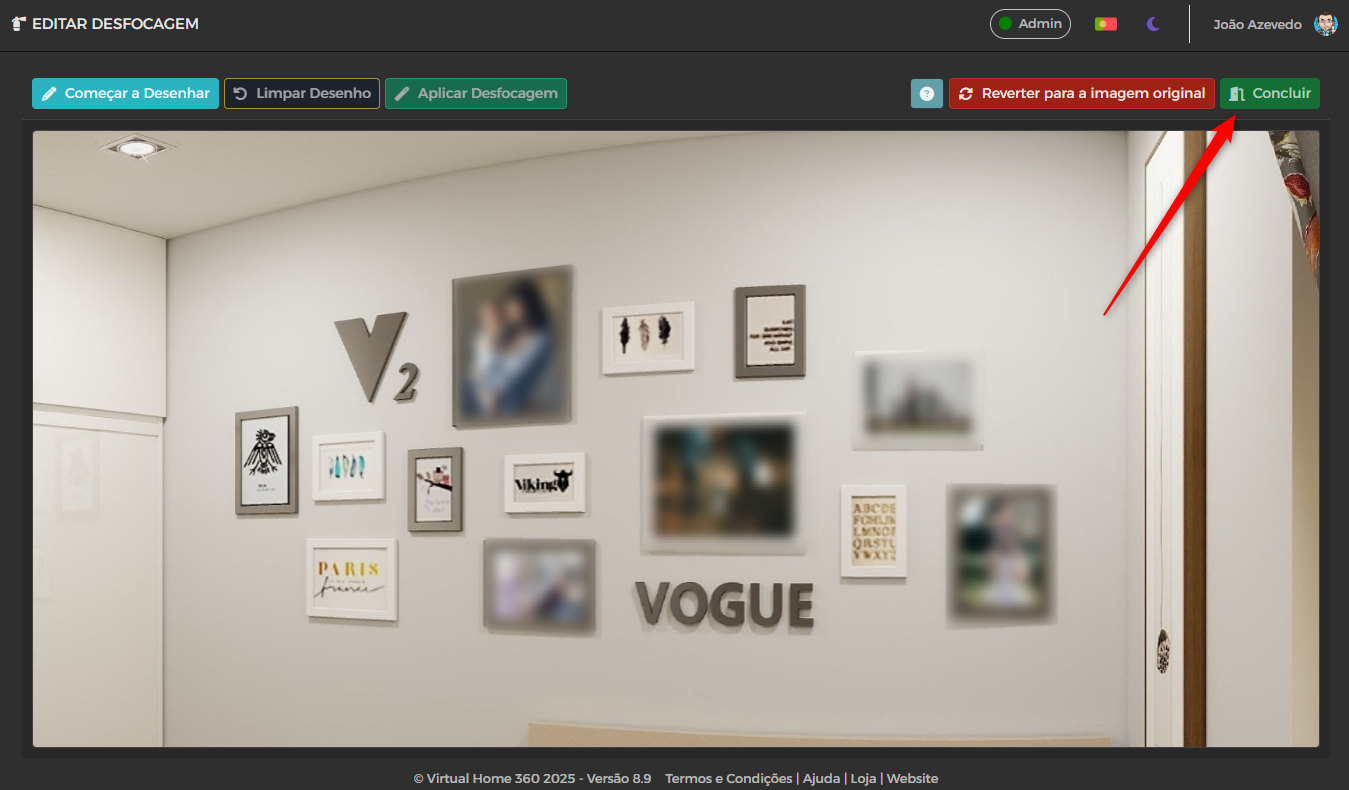
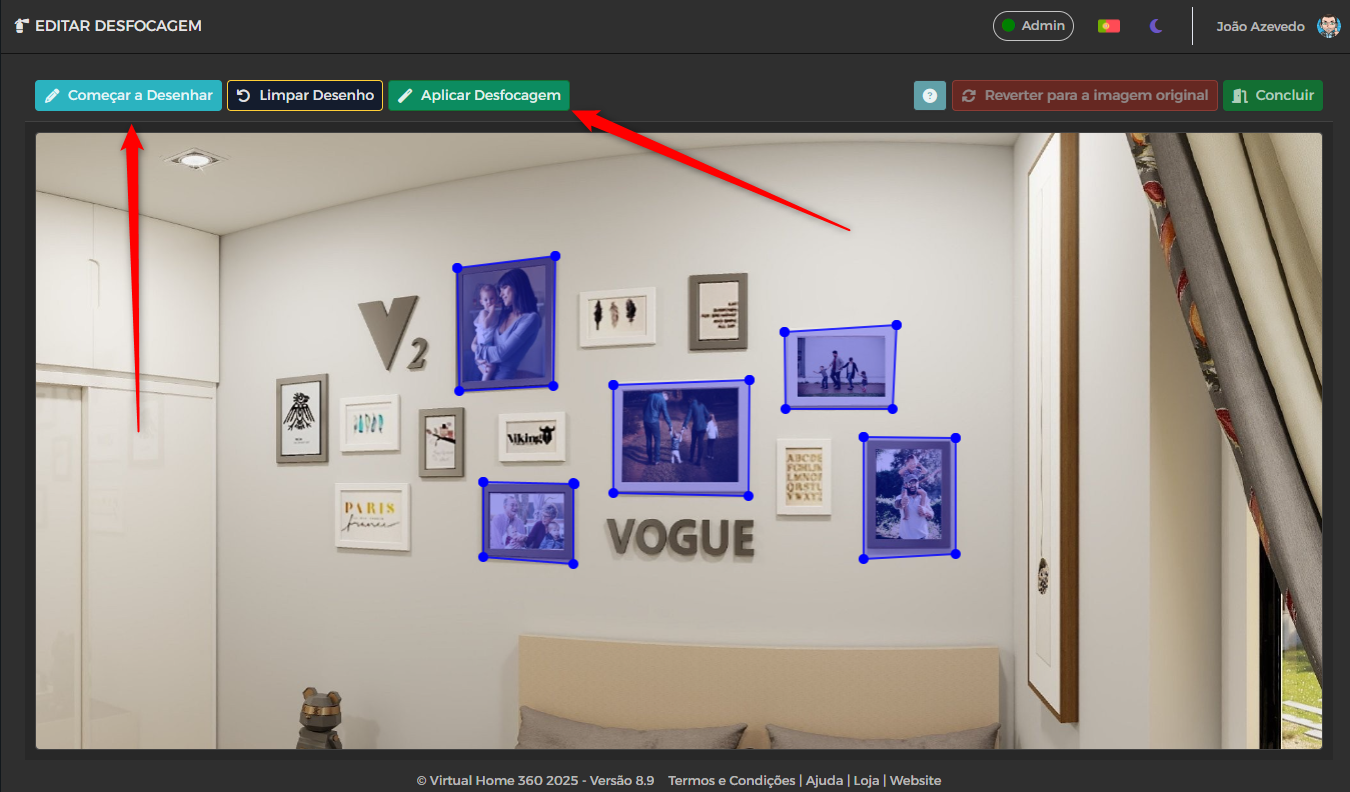
After clicking on Edit Blur a new window will appear with the 360° panorama in flat mode.
You can zoom in to the desired area with the mouse scroll and move the image by dragging it with the left button.
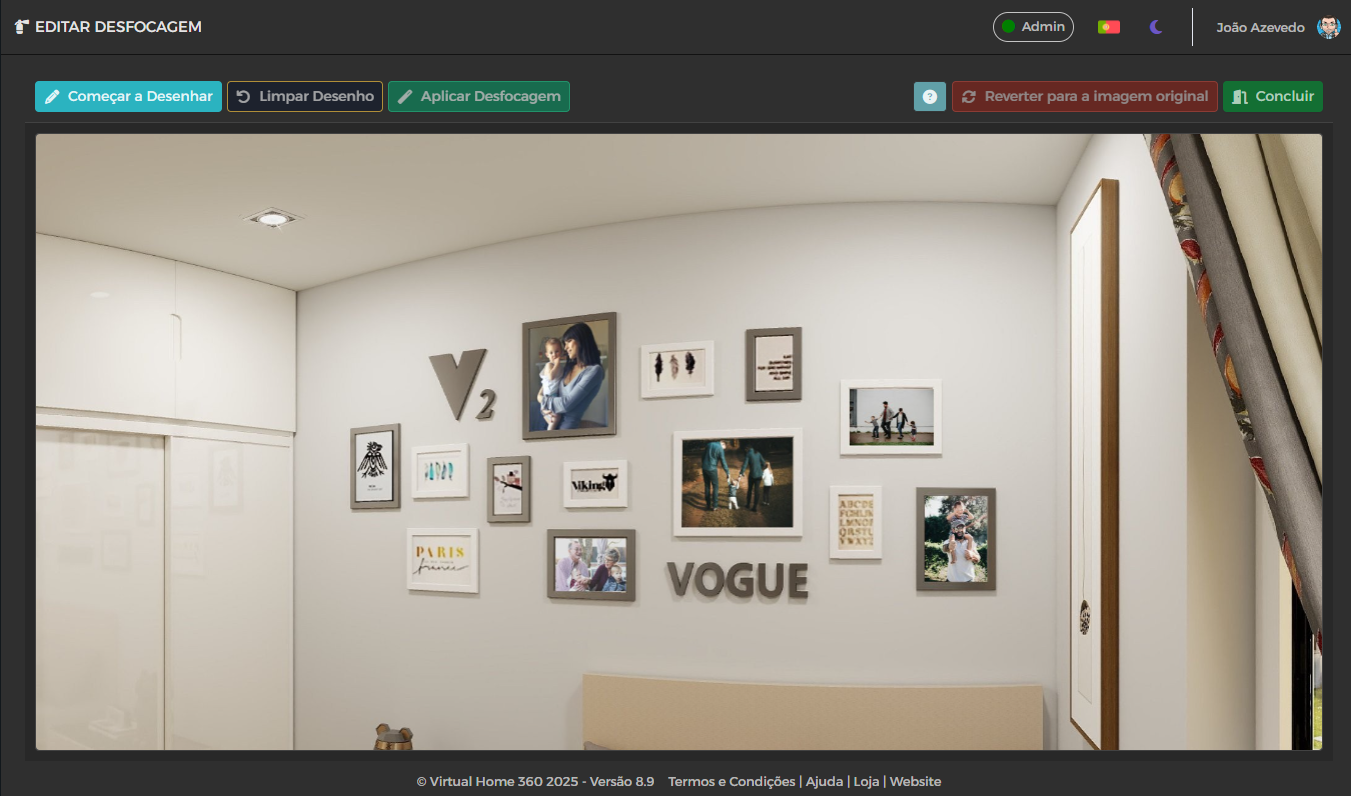
Click on Start Drawing to start putting the points of the area to be blurred and at the last point you can double-click to finish the process.
It can be load another view in Start Drawing to design more areas.
Then click on Apply Blur and choose the option Yes, apply blur to initiate the blurring process.
Wait a moment until the process is over.
The waiting time will depend on the internet connection.
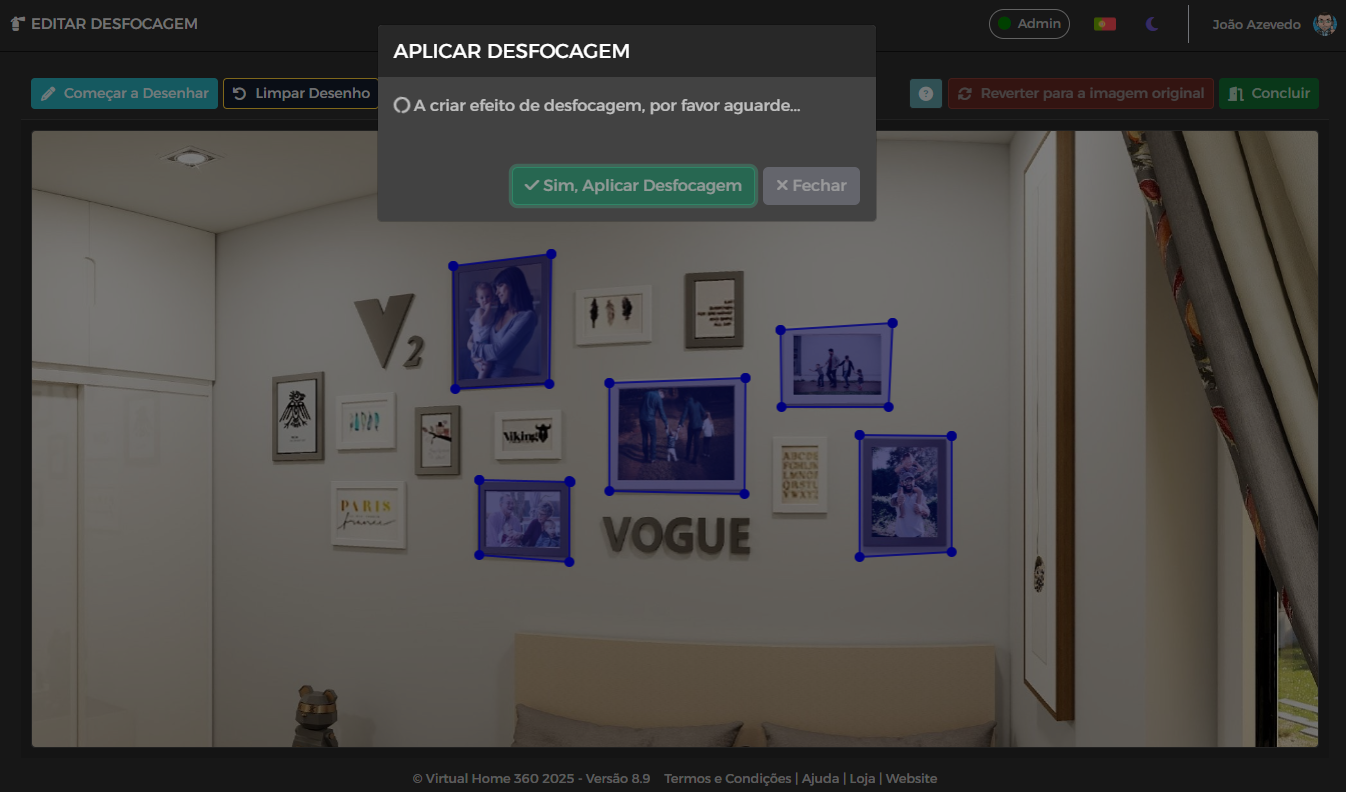
After the areas are blurred, click Finish to proceed with editing the tour